Reset Your Administrator Password
When we create your organisation (we call that a tenant), we will also create the Administrator(s) account users (Name, Family Name, Email) (contributors) to the system.
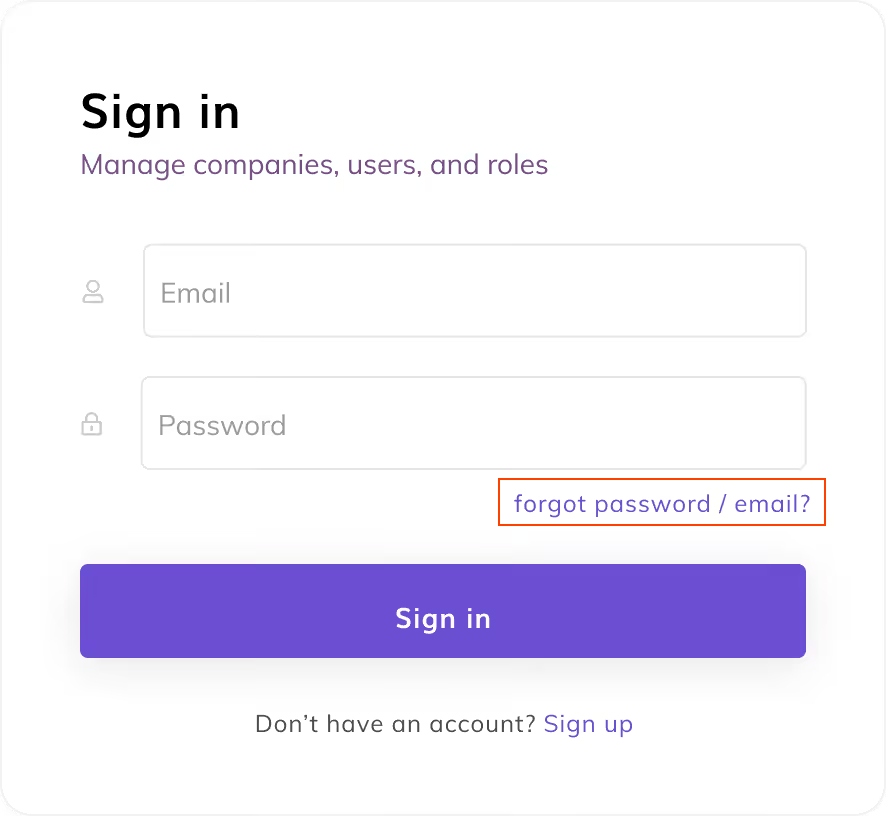
- For security and compliance reasons, we force users to change their password using the Forgot password / email? button. Once you have changed your password, you will be able to access Eleven. tab.
Adding Client Companies and Inviting Collaborators
Adding Client Companies
As the Admin of Eleven in your accounting firm, you have exclusive rights to add client companies and invite accountants (contributors) to the system.
- On the navigation bar, select the Companies tab.
- On this page, to the right, please click the New Company button.
- Complete the Create Company form, and click Submit.
Inviting Collaborators (accountants & supervisors)
- On the navigation bar, select the Collaborators tab.
- On this page, to the right, please click the Invite Collaborator button.
- Complete the Invite Collaborator form, and click Send.
Assigning Accountants to Companies
- On the navigation bar, select the Company tab.
- On this page, select a company from the company list and click on it.
- Click Save & Review Accountants Assigned. Select the collaborator from the Accountant dropdown. You may select more than one collaborator.
- Once done, click on Assign Accountants.
Managing Groups
Groups let you model the ownership structure of family offices, investment holdings, and any organisation with layered entities. A Group is a container that represents an ownership relationship between multiple Companies (and sometimes other Groups). It is not a Company itself — it is how you tell Eleven "these entities belong together."
Key concepts:
- Direct members are Companies or sub-groups that sit directly inside a Group (one level deep, not nested further).
- Ownership percentage captures how much of each member the Group owns.
A typical family office structure looks like:
- A Master Group at the top (e.g. "Tan Family Office")
- Sub-groups underneath for investment types (e.g. "Tan Investment Holdings", "Tan Property Holdings")
- Companies as direct members of the appropriate Group at any level
Adding or removing a Company from a Group only changes the Group structure. It does not delete the underlying Company.
Creating a Group
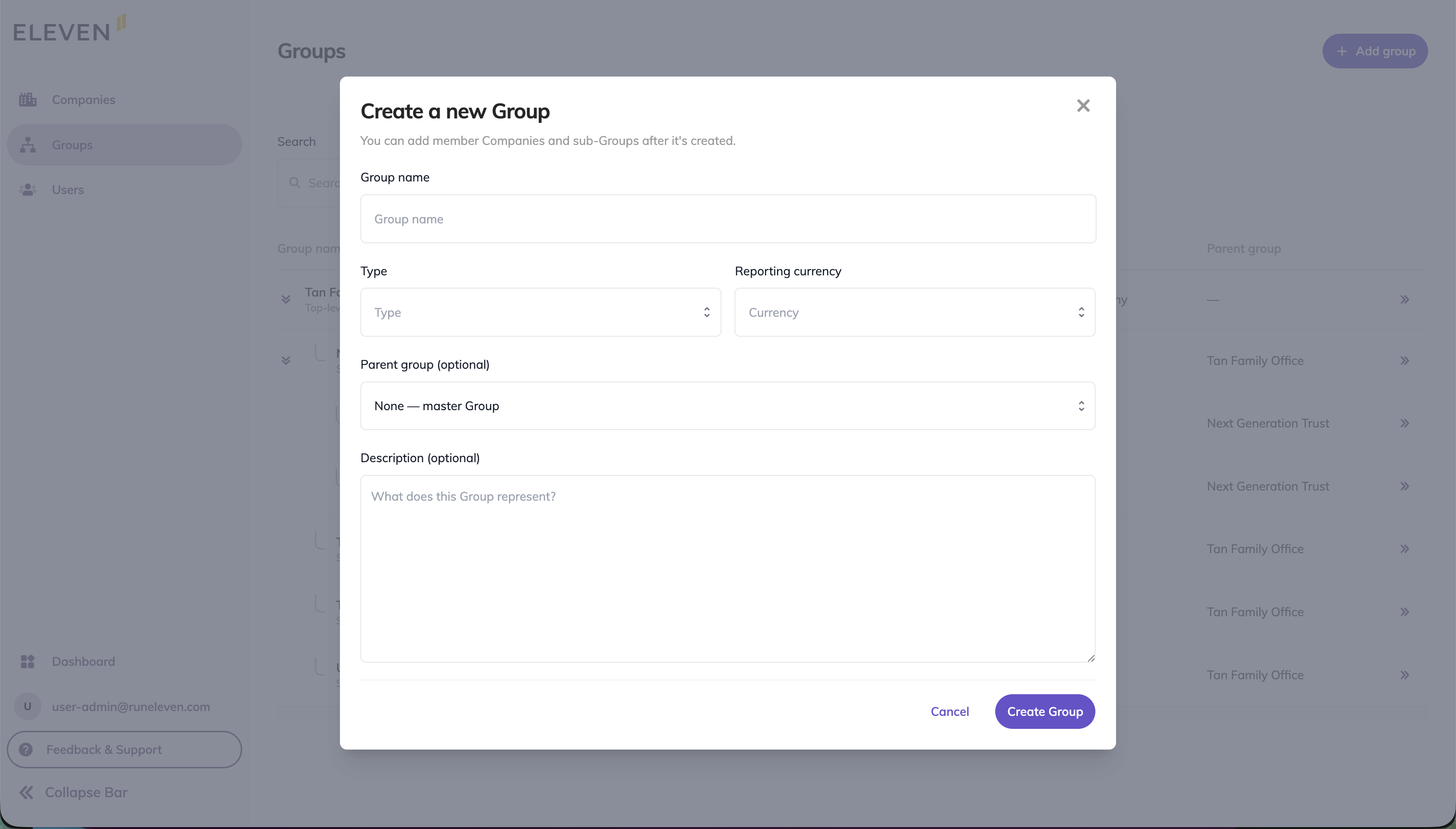
- On the navigation bar in the Adminstrative Management, select the Groups tab.
- On this page, to the right, please click the + Add group button.
- Complete the Create Group form: Group name, Type, Reporting currency, and Description (optional).
- Click Save.
Adding Sub-groups
- On the navigation bar in the Adminstrative Management, select the Groups tab.
- Select the parent Group from the list and click into it.
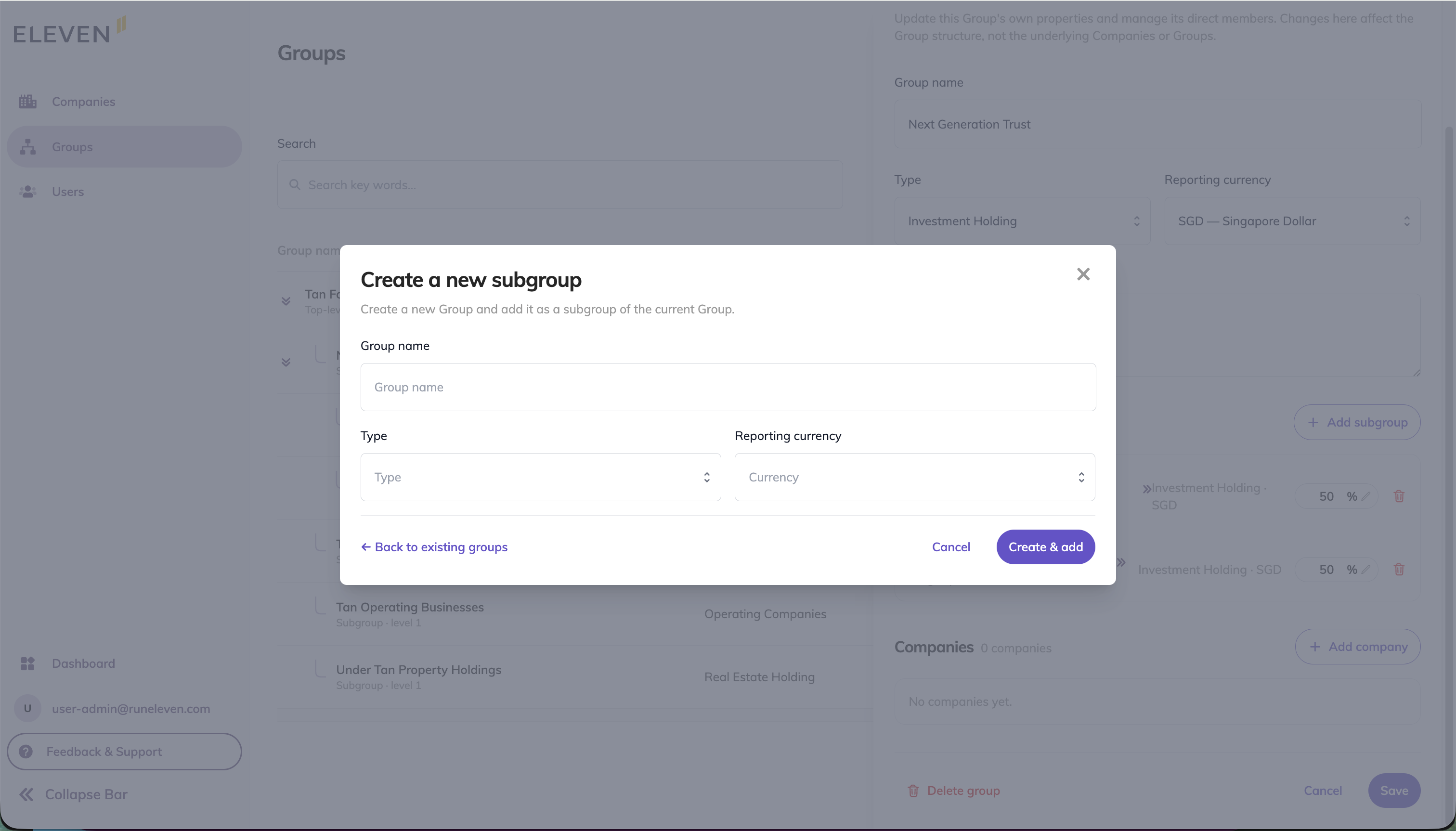
- In the Groups section, click + Add subgroup.
- Complete the form, including the ownership percentage (how much of the sub-group the parent owns).
- Click Save.
💡 Note: Eleven prevents circular structures. You cannot add a Group as its own sub-group, or select a sub-group that would create a loop in the hierarchy.
Adding Companies to a Group
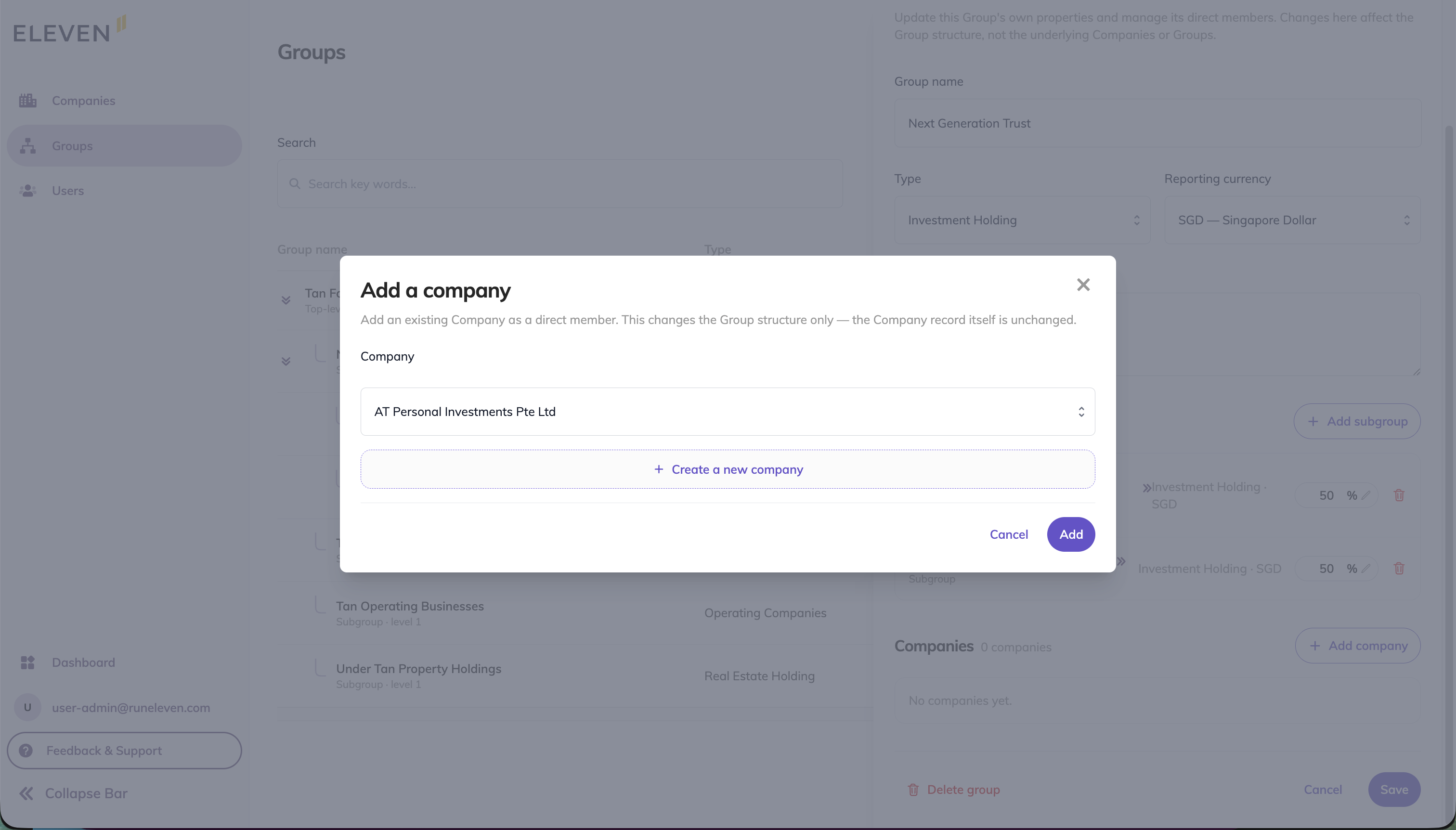
- On the navigation bar in the Adminstrative Management, select the Groups tab.
- Select the Group you want to add a Company to and click into it.
- In the Companies section, click + Add company.
- Select the Company from the dropdown.
- Enter the ownership percentage (e.g. 100%, 80%, 51%).
- Click Save.
Editing Ownership Percentages
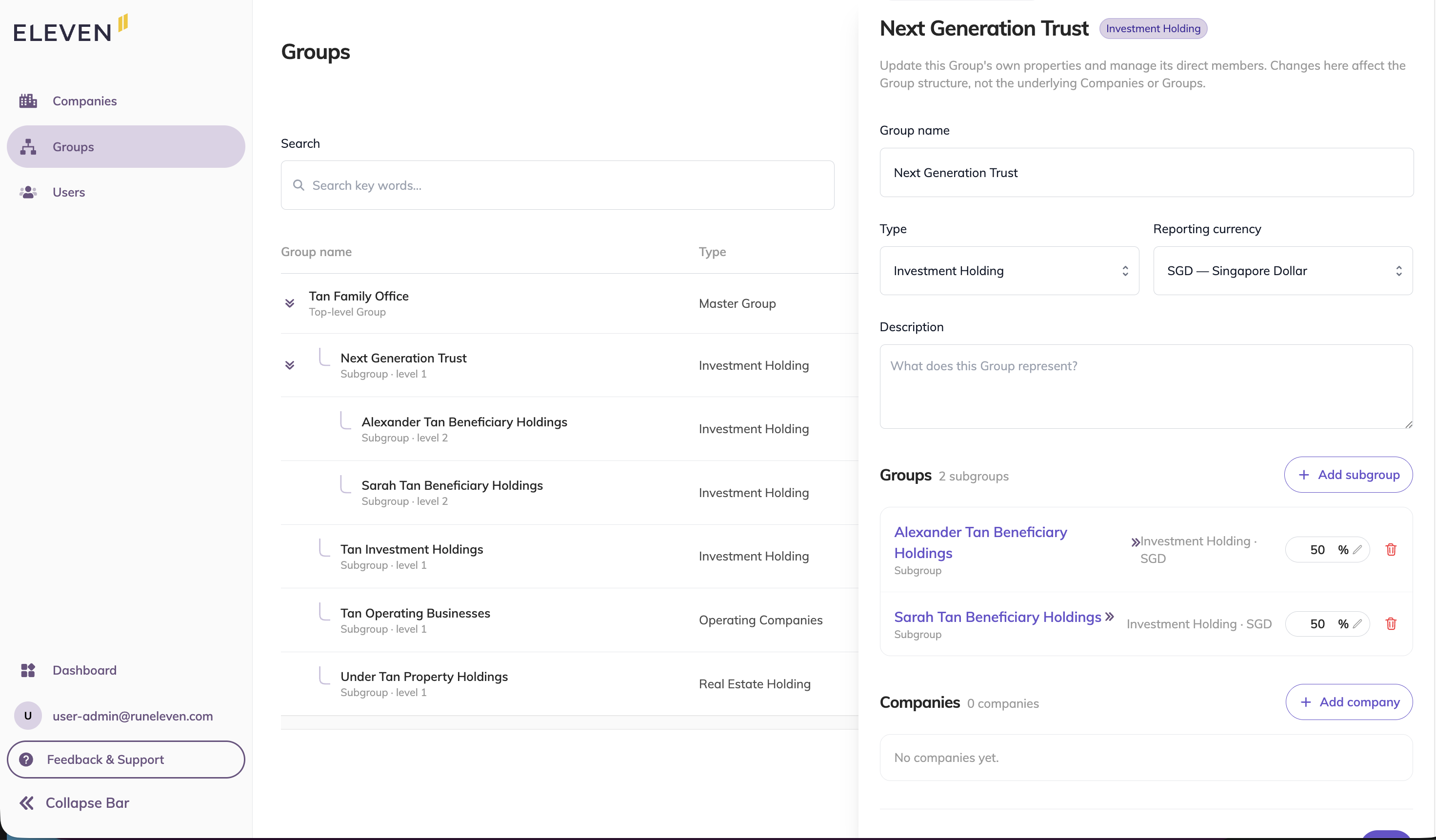
- On the navigation bar in the Adminstrative Management, select the Groups tab.
- Select the Group containing the member you want to update.
- Click the ownership percentage next to the member name.
- Select the Company from the dropdown.
- Enter the new percentage and click Save.
Removing Members from a Group
- On the navigation bar, select the Groups tab.
- Select the Group containing the member.
- Click the trash icon next to the member.
Article Information
✍🏻 Written by: Eleven Support Team
🔎 Reviewed by: Noe Saglio
🗓️ Last Updated: November 12, 2025